
Receiving and handling orders
From a new order to delivery, with customer notifications.
- Reading time
- 2 min read
- Steps
- 4 steps
- Level
- Beginner
- Updated
- Updated October 11, 2026
Each new order appears in the store admin immediately with a notification. Order statuses can be customised in settings.
1The order list
In “Orders” search and filter by status and date, and open an order to see items, address and payment method.
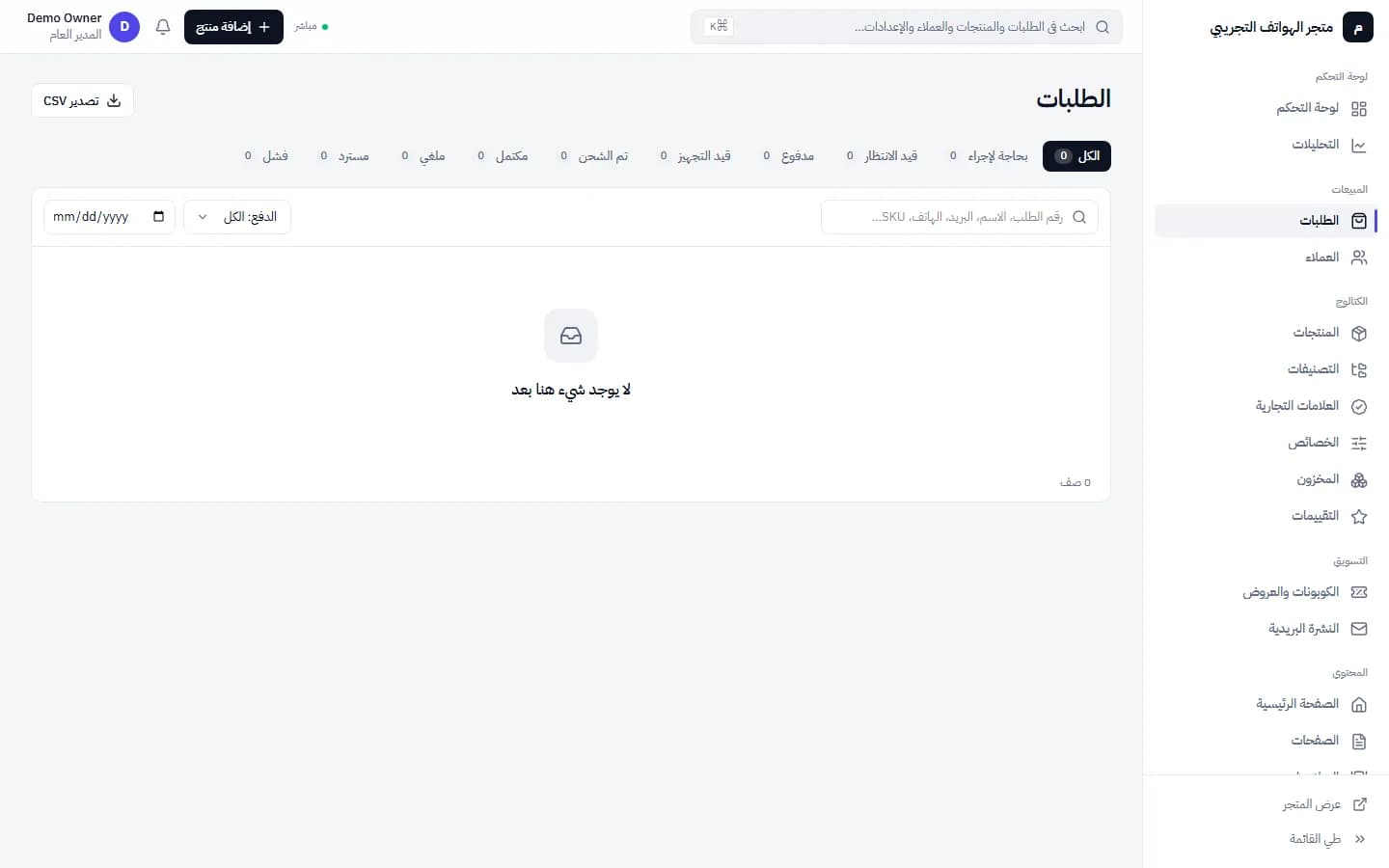
The orders page in the store admin · Arabic interface 2Updating the status
Update the status (processing, shipped, delivered…). The customer can be notified according to your notification settings.
3Customers and messages
In “Customers” see buyers' accounts and past orders; reply to questions from “Messages” and “Chat”.
4Shipping and regions
In “Settings → Shipping and Regions” set delivery areas and prices.