
Free trial, activation and renewal
The installation code, the subscribe-online button, the activation code and renewing without losing days.
- Reading time
- 3 min read
- Steps
- 7 steps
- Level
- Beginner
- Updated
- Updated October 10, 2026
The POS interface is in Arabic; screenshots and button names are shown as they appear in the app, with English explanations.
The POS runs a 14-day trial from its first start on a computer. Activation uses a digitally signed code that works offline and is bound to your computer.
1Open “Subscription & license”
From the side menu. It shows the status, days left and the “installation code” with a copy button.
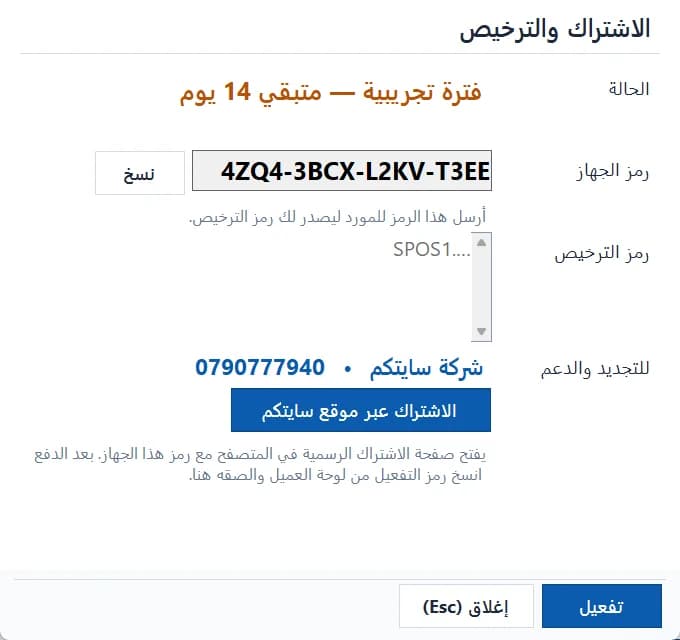
“Subscription & license”: status, installation code and the subscribe-online button · Arabic interface 2Click “Subscribe on the Sitekoom website”
Your browser opens the official subscription page with your installation code filled in. If the browser can't open, the link appears to copy, with our contacts.
3Registered trial (optional)
From the “Free trial” tab create your account and business details to get a trial code that ends on the same day as the local trial. One trial per account and per computer.
4Subscribe and pay
Choose the plan, add-ons and payment. Card payments activate instantly; CliQ and bank transfers after our team verifies them. If the price changed before you confirm, you're shown the new price to approve.
5Copy and paste the activation code
In the portal click “Show activation code” then “Copy”, paste it into “License code” and click “Activate”. Only the system administrator can enter it.
6Reminders and grace
Reminders appear 30, 14, 7, 3 and 1 day before, offering to open the renewal page. After the end come grace days, then only selling and returns stop; data and reports stay.
7Renewing
Click “Renew online”. The renewal is added after your current end date and a new code for the same computer works immediately on every store register.
FAQ
No. The computer remembers when its trial started even with a new data folder, and the website allows one trial per computer and per account.
The installation code changes. Enter the new one on your subscription page (limited number of moves) to get a code for the new computer.