
Users, roles and permissions
Who sees what and who approves what — with a log of every sensitive action.
- Reading time
- 2 min read
- Steps
- 6 steps
- Level
- Intermediate
- Updated
- Updated October 10, 2026
The POS interface is in Arabic; screenshots and button names are shown as they appear in the app, with English explanations.
Permissions are checked inside the services, not only on screens, and the menu shows each account only what it may use.
1Open “Accounts & permissions”
The Users tab shows accounts, roles, last sign-in and PIN status.
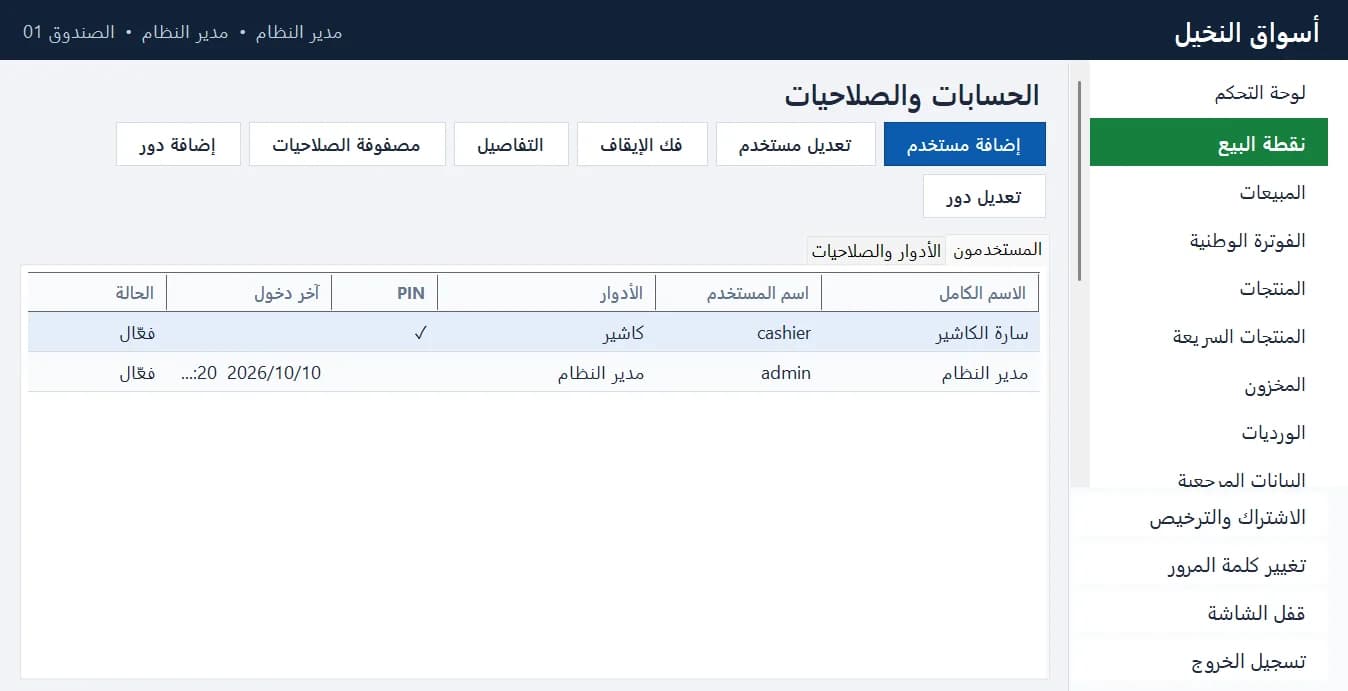
Accounts & permissions: users, roles and the permission matrix · Arabic interface 2Built-in roles
System administrator (everything), company manager (the business without technical administration), store manager, accountant (read and export, no selling or settings) and cashier. Every role is fully editable.
3Add a user
“Add user”: name, username, password, optional PIN and role. The PIN is used for quick sign-in and manager approvals.
4The permission matrix
The “Permission matrix” shows every permission for every role in one table for quick edits.
5Permissions reserved to the administrator
Entering the license code, switching supermarket/restaurant and editing roles are reserved to the system administrator, and a user manager can never grant a permission they don't hold.
Never share the administrator account with cashiers.
6The audit log
The Audit page records every sensitive action: price changes, approvals, deletions, denied sign-ins and setting changes.